
Creating the first user
Once QruiseOS has been installed on your machine, you'll receive a link from us or your system administrator to create the first user account.
Registration link
For security reasons, the registration link is one-time use only. If it's already been used or you've lost it, please contact Qruise for support.
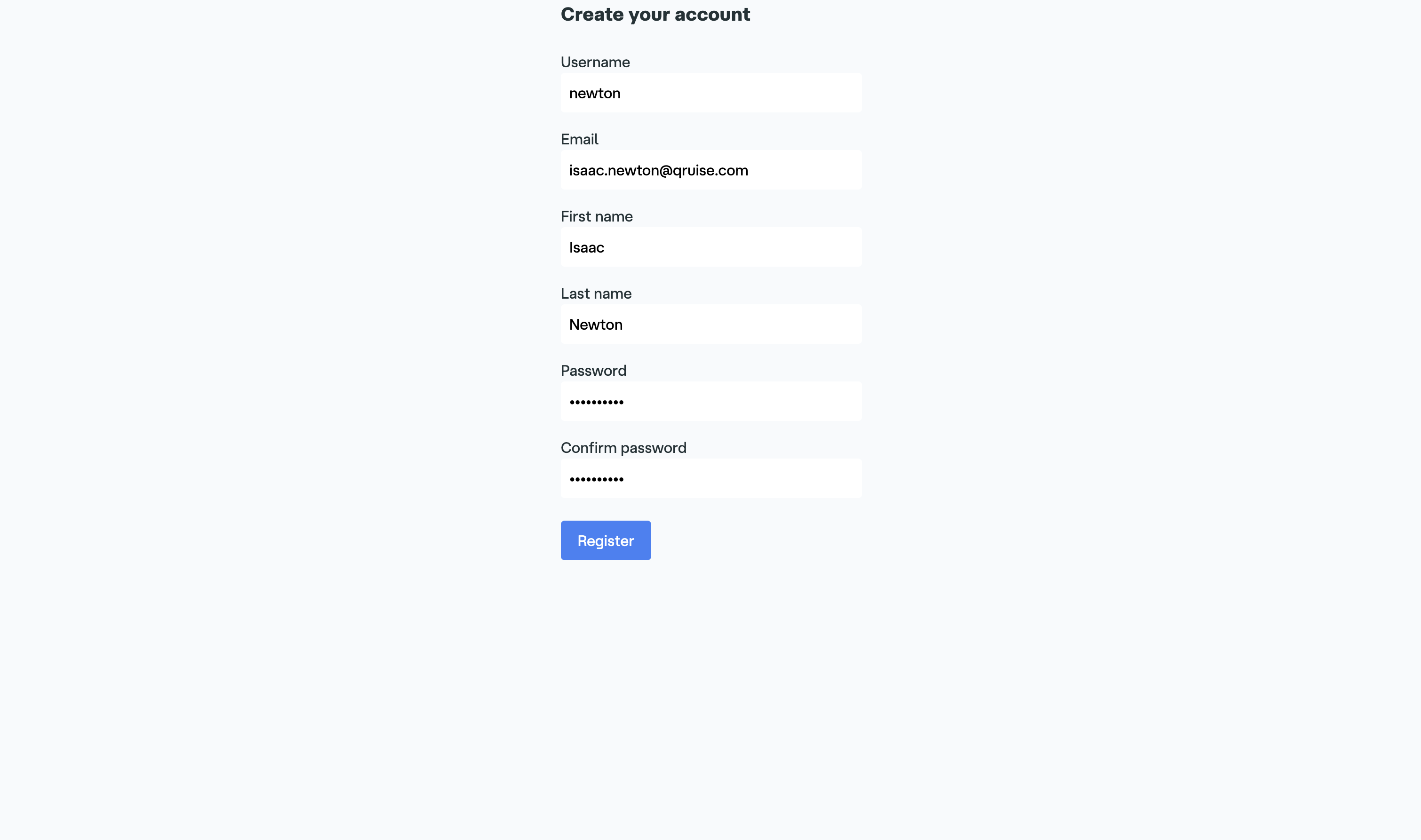
The link will take you to a form where you can enter the details of the first user — this will most likely be your own account. Provide a username, email address, first name, last name, and password, then click "Register" to create the first user. This user is automatically granted tenant administrator permissions.
System administrator vs tenant admin
Your system administrator is the person who manages your QruiseOS install — this could be a Qruise developer or someone from your team. A tenant administrator manages users and QPUs, and is responsible for assigning permissions.
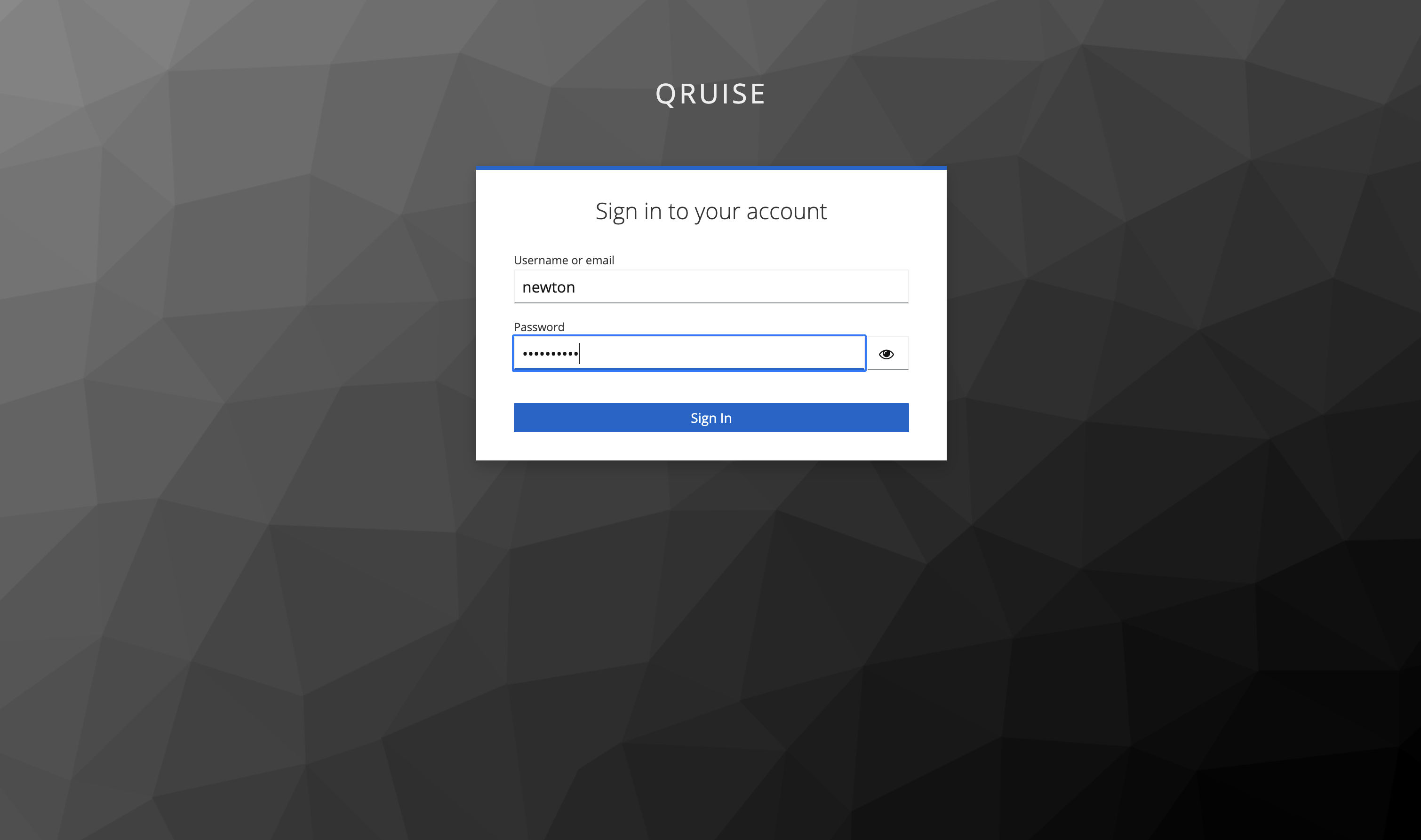
After submitting the form, you'll be redirected to the login page. Simply enter the username and password you chose in the previous step and click on the "Sign In" button:
You'll now be taken to the QruiseOS dashboard:
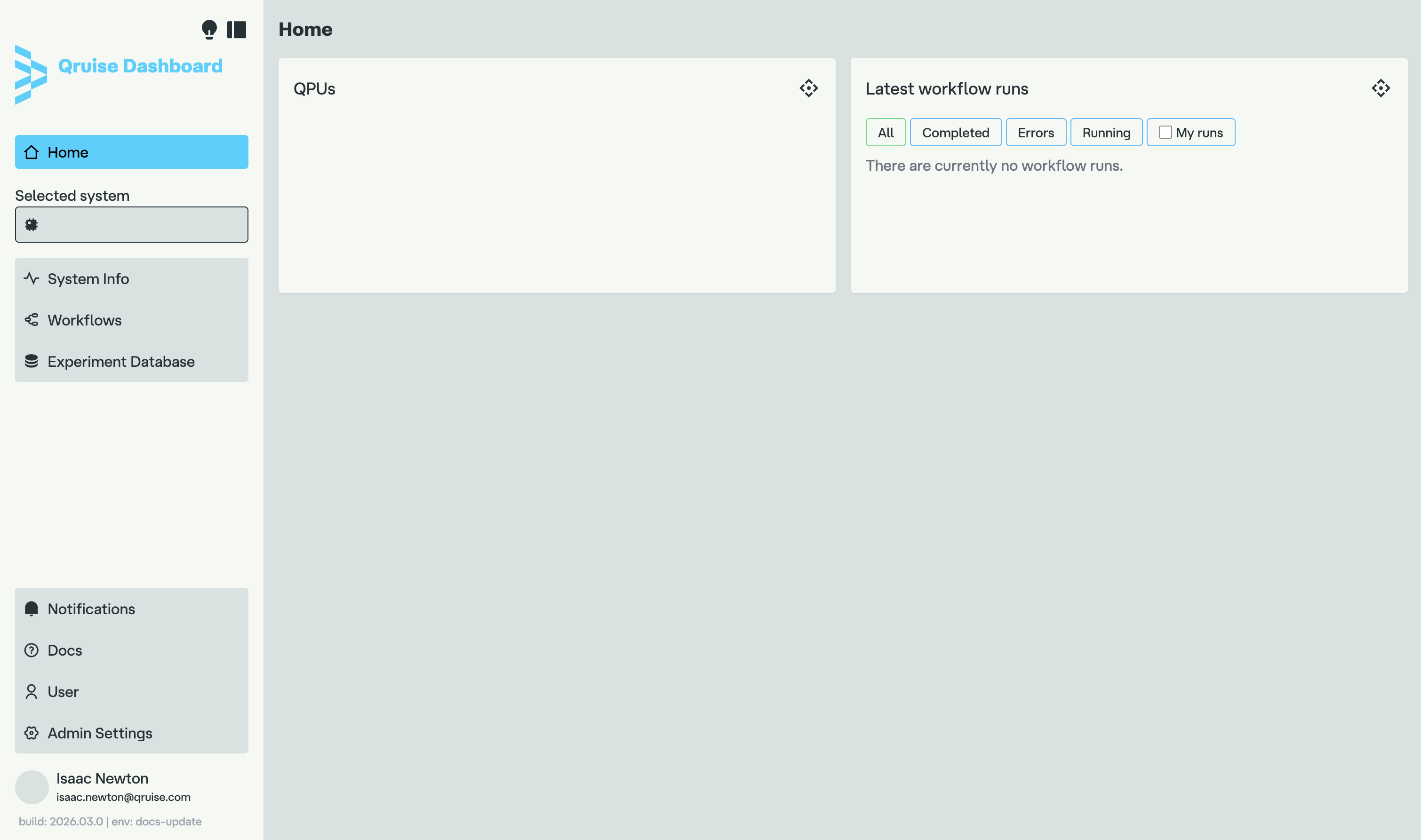
As you can see, it's a bit empty. In the next step, we'll add the first QPU to start populating the interface.